There are two possible ways to register an account in Globula: via login/password combination or via Google/Apple. See instructions below.
Login/Password Sign-Up
Install and run the app.
Tap the “Create new Account” button.

Fill all the fields with the required data.

- Enter a valid email address you have access to. This email would be used for password reset. It cannot be corrected or changed once it’s been registered to your account, so make sure to enter the address correctly at this stage.
- Next field is for your username/game name. It can be up to 20 characters long and contain Latin letters (upper and lower case), numbers and up to two spaces. For example: Captain John Silver.
- Next field is the password. It must be min. 8 characters long and contain at least one number and one uppercase letter.
- Confirm the password in the next field.
- Tap ‘SignUp’ once you’ve filled in all the fields.
The app will open the main sign-in menu.
Enter your login (either email or username) and password.
Successful login will open the game map.
Check your registration data after sign-in.
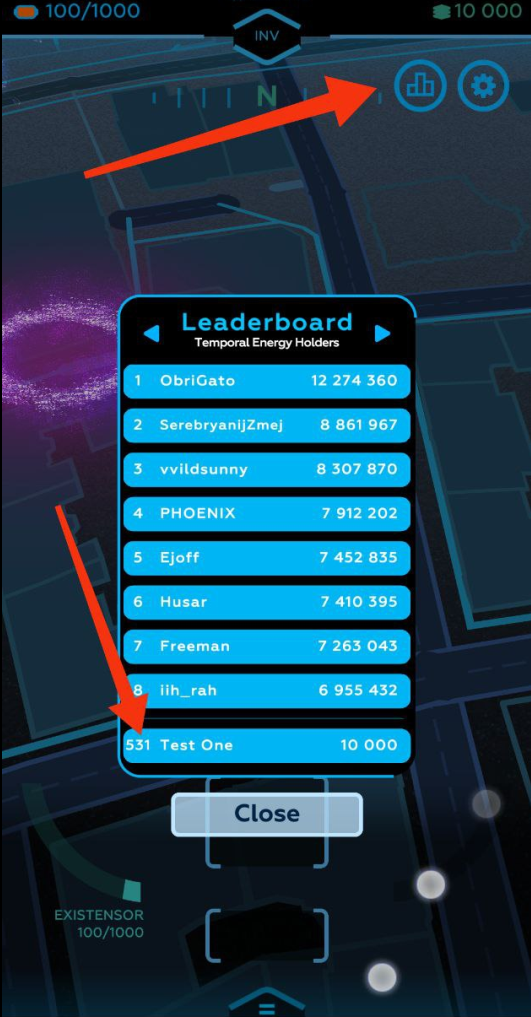
Tap the Leaderboard icon in the top right corner. The pop-up window shows the list of top players; your username and current leaderboard position will be at the bottom of the window separated by a line (you don’t have to scroll the list).
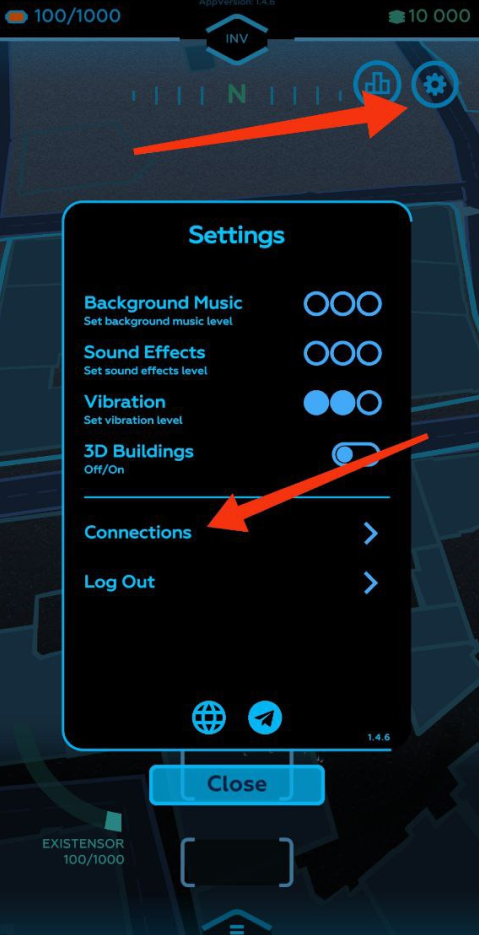
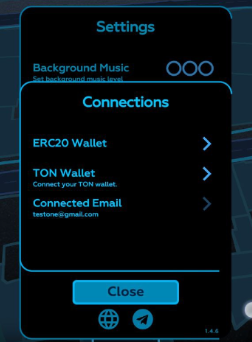
Tap the Gear icon (Settings) on the right to the Leaderboard icon. It will open the user settings pop-up window.
Tap ‘Connections’.
Check your email in the pop-up window with your registration data (under ‘Connected Email’ string).
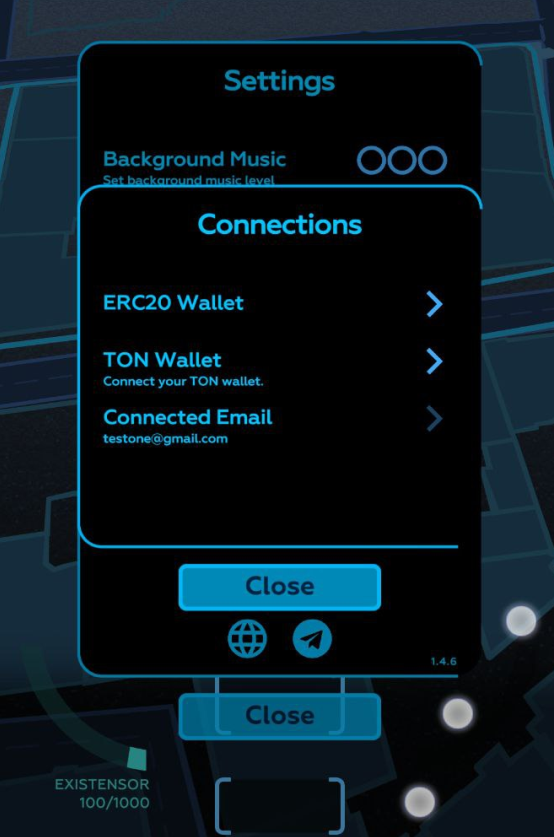
You can play Globula without a TON wallet. However, if you plan to have full access to all game features such as the Market, you must add a TON wallet to your account.
If you don’t yet own one, you can create a TON wallet, see “How to create a TON wallet” below.
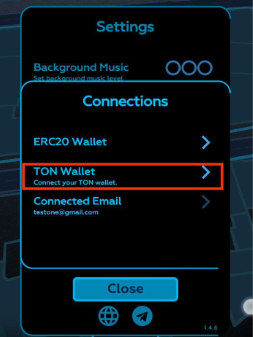
If you already have a TON wallet, tap ‘TON Wallet (Connect your wallet)’ as shown below.
The pop-up window has the list of supported wallet clients.
Choose the app you use for your wallet and run it. Then, tap wallet connection and authorize it.
You will get ‘The user was successfully added’ notification.
If your wallet has been connected, you will see its unique number under the ‘TON Wallet’ string instead of ‘Connect your wallet’ prompt.

Warning: your account data such as username, email address and TON wallet number cannot be changed once they have been registered to your account.
If you want to change your password for login entry, tap ‘Log Out’ in the settings window. Tap ‘Forgot your password?’ in the main menu. The reset code will be sent to your registered email address. Make sure that you have access to it. You must enter a correct and valid email address when you register your account!
If you see ‘Wallet not connected’ notification. This can happen if the service is overloaded. You will have to wait and try again later. It may take up to several hours. However, you can play Globula without a TON wallet, and add the wallet later when the service becomes available.
How to Create a TON Wallet
If you don’t own a TON wallet, you need to download a TON wallet client first, such as HOT Wallet (download), install the app and create a wallet there, following the prompts given. If you’ve never ever used cryptocurrency, you should read on the topic, including the use and importance of the seed phrase.
There are other supported TON wallet clients available beside HOT Wallet:
TonKeeper (https://tonkeeper.com/)
TonSpace (https://wallet.tg/wallet)
Tonhub (https://tonhub.com/)
MyTonWallet (https://mytonwallet.io/) — currently its’ the most stable client.
Warning: you cannot change your TON wallet number once it’s been registered to your Globula account. If you lose access to your TON wallet, you will lose Market access, as well! To avoid that, please write down and keep your seed phrase in a safe place.
Use our Telegram Community for any further questions.